
Features Scheduling

One shared calendar, booked right from the chat

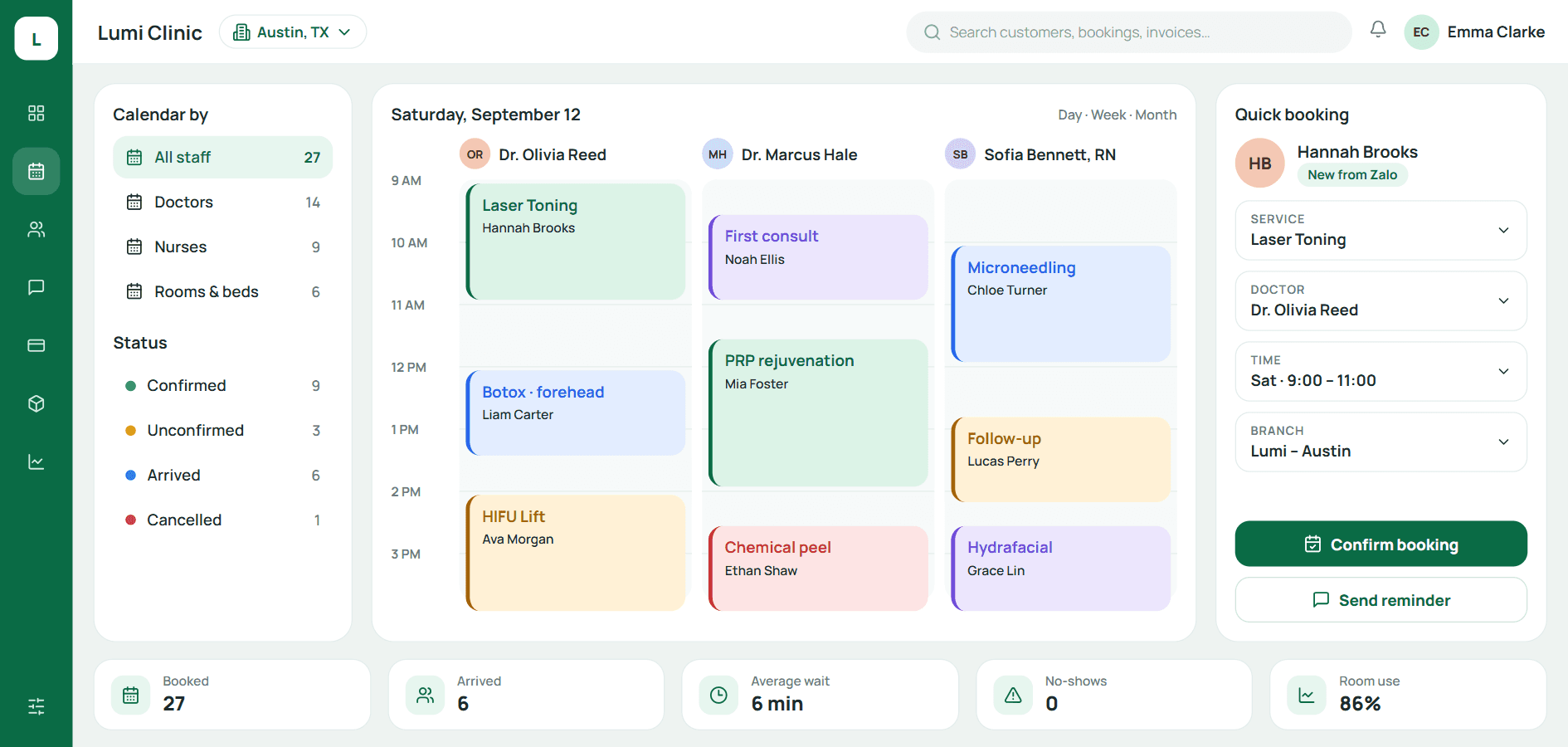
Rooms, beds, machines and staff on one calendar: the front desk sees who is waiting and which machine is free, and consultants close bookings right in the Zalo or Messenger inbox.

Day calendar in Qub-X CRM
  1. 01 / 03

    Long waits change colour

  2. 02 / 03

    A queue for every machine

  3. 03 / 03

    Customers book online

Versus the old way

Booking from Zalo: 4 screens → 1 panel

The customer messages, the consultant opens the new-appointment panel inside the inbox, picks a time and a room, and that's it, no tab switching, no retyping the name.

  1. 01Fewer stepsThe new-appointment panel opens from the inbox, the customer record, payments or inventory.
  2. 02No double-booked roomsBooking a room that is taken is flagged at once, on one calendar for rooms, beds and staff.
  3. 03No lost customersOnline bookings land on the calendar as unconfirmed, for the front desk to call back.

The usual way · 5 steps

  1. Read the message on the phone
  2. Open the calendar app, find a free slot
  3. Open Excel to look up the customer
  4. Retype name, phone, service
  5. Go back to Zalo to confirm the time

5 steps, 4 screens, easy to mistype

With Qub-X · 2 steps

  1. 1Inside the chat, click New appointment
  2. 2Pick time, room, staff, the customer is prefilled

1 panel, never leave the inbox

The problem

The book is full but rooms sit empty, because the calendar lives in three places

01/ 08

A notebook, Zalo and everyone's memory each hold a calendar, so double-booked rooms and empty beds show up too late.

  • Reschedules by text that nobody writes down
  • No view of which room or machine is free
  • Cancelled customers still holding a slot
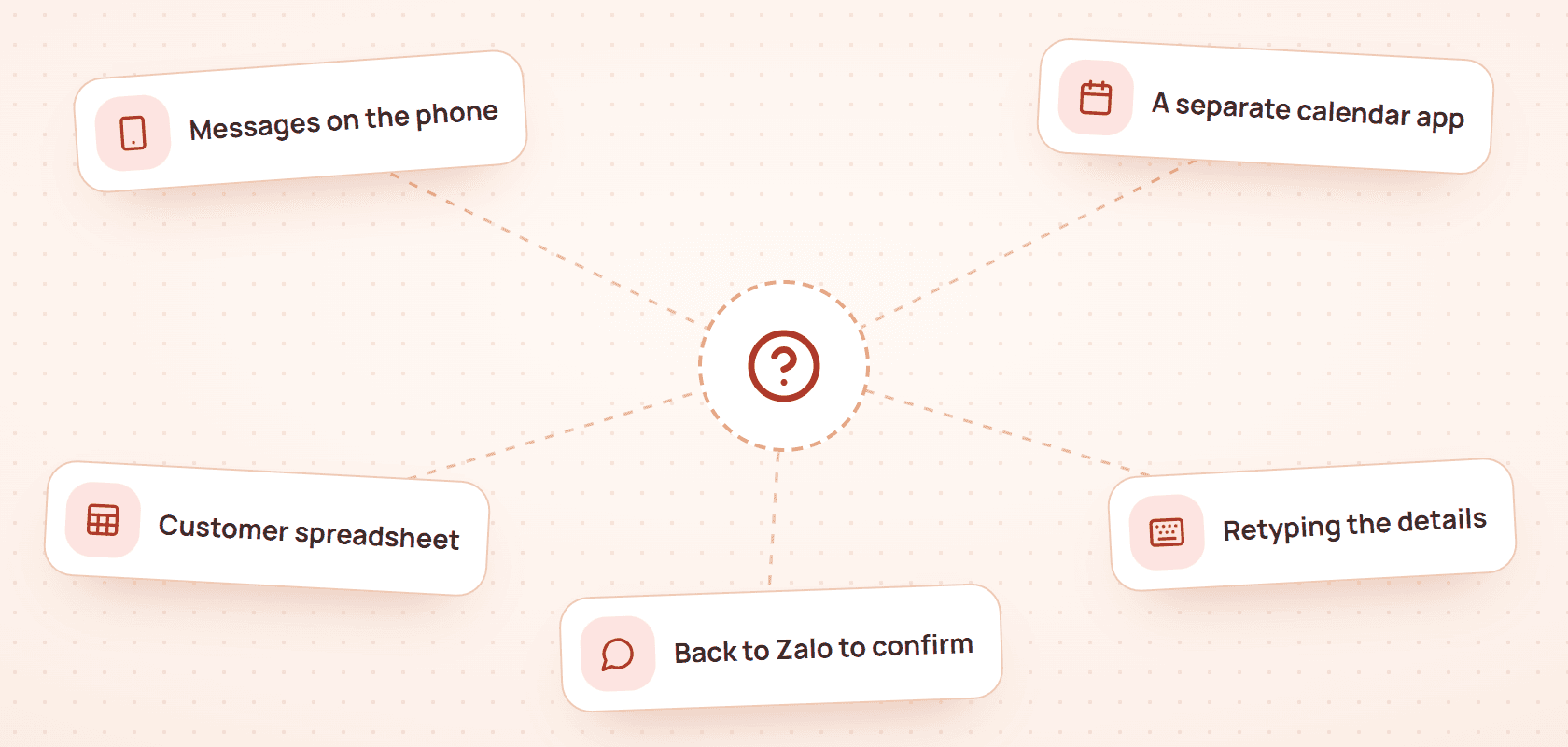
The usual way: Read the message on the phone, Open the calendar app, find a free slot, Open Excel to look up the customer, Retype name, phone, service, Go back to Zalo to confirm the time
The usual way
  • Reschedules by text that nobody writes down
  • No view of which room or machine is free
  • Cancelled customers still holding a slot
What stands out

Open the calendar, and see who has arrived and who is waiting

02/ 08

See a list, a status board or a day, week or month calendar, filtered by staff, room, source and appointment group, with a count beside every choice.

  • Top strip: booked today, arrived, running late, collected
  • A colour per appointment group, set by the clinic
  • Filter by source: pre-booked, phone, online, walk-in
Day calendar and new booking
  • Top strip: booked today, arrived, running late, collected
  • A colour per appointment group, set by the clinic
  • Filter by source: pre-booked, phone, online, walk-in

Saves 4 screens

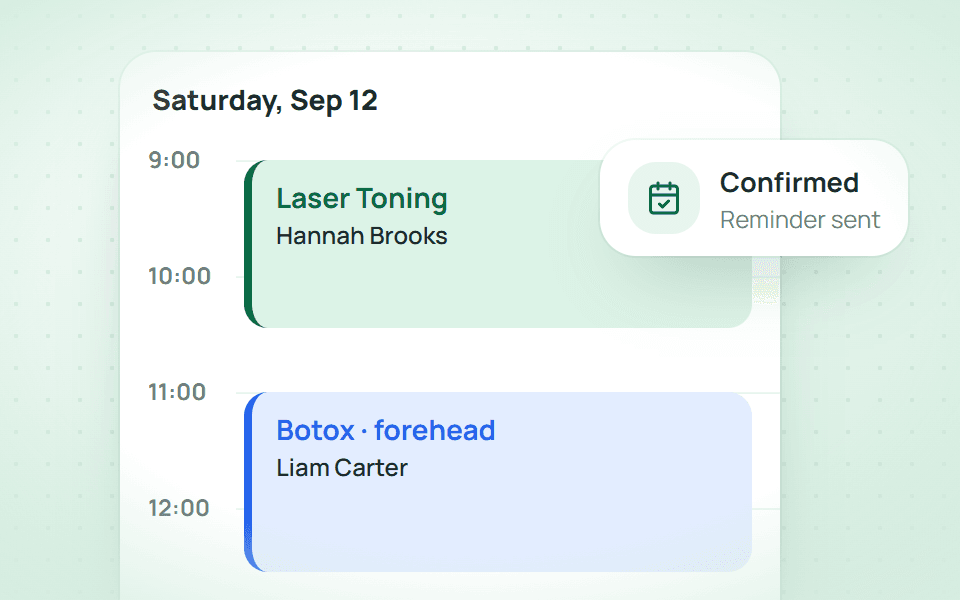
A customer messages on Zalo, book them inside the chat

03/ 08

Name and phone are prefilled, so you only pick the service, time and branch, with visit history right beside you.

5 steps, 4 screens, easy to mistype1 panel, never leave the inbox
  • Book from the inbox, the customer record, payments or inventory
  • Phone bookings tagged with the Phone source
  • Confirmation sent back on Zalo OA
See Omni-channel chat
Booking from the inbox
  • Book from the inbox, the customer record, payments or inventory
  • Phone bookings tagged with the Phone source
  • Confirmation sent back on Zalo OA

Status board

A customer waits too long, and the whole branch is told

04/ 08

Every card counts the minutes a customer has waited, and past the clinic's limit it turns orange, red or flashing while branch staff get a reminder.

  • Your own rules, such as a reminder to offer a drink
  • Complaints to follow up flagged on the calendar
  • Change status from the card menu: arrived, start, complete
See how complaints are handled
Status board
  • Your own rules, such as a reminder to offer a drink
  • Complaints to follow up flagged on the calendar
  • Change status from the card menu: arrived, start, complete

Rooms and machines

Two customers want one machine, and the queue is already set

05/ 08

Each branch sets its floors, rooms and machines, every machine has a queue with an estimated time, and booking a room that is taken is flagged at once.

  • Which machine is free, which is busy, how many are waiting
  • Queue a customer for a machine from the card
  • Day notes: house rules and machine status
Machine queue
  • Which machine is free, which is busy, how many are waiting
  • Queue a customer for a machine from the card
  • Day notes: house rules and machine status

Online booking

Customers book online, the front desk just calls to confirm

06/ 08

The clinic's own booking page lets customers pick a branch, the services they want and a free time, and the booking lands on the calendar as unconfirmed.

  • Opening hours per day, holidays and places per slot
  • Booking page in Vietnamese, English and Korean
  • New-booking emails to the clinic, a confirmation email to the customer
Online booking page
  • Opening hours per day, holidays and places per slot
  • Booking page in Vietnamese, English and Korean
  • New-booking emails to the clinic, a confirmation email to the customer

During the visit

Mark the service done, and the package session is used

07/ 08

The visit page shows the customer's packages, doctor and consultant notes, the order and what is paid, and every change of time, staff or status goes into its history.

  • Marking a service done takes one session from the package
  • Create the order on the visit, and optionally require payment before completing
  • Print a visit slip with queue number and QR code
See Orders & payments
Visit page
  • Marking a service done takes one session from the package
  • Create the order on the visit, and optionally require payment before completing
  • Print a visit slip with queue number and QR code

Easy to use

Rescheduling, just drag the block to another time

08/ 08

Drag to move, one click to change status, and group colours and names match on the board and the calendar.

  • Drag to change time or room
  • Clear statuses, one click
  • Same colours and names across the system
Day calendar
  • Drag to change time or room
  • Clear statuses, one click
  • Same colours and names across the system

Three questions front desks ask

Do online bookings go straight into the calendar?
Yes, they land on the calendar as unconfirmed, tagged Online, for the front desk to call and confirm.
Can the clinic set its own appointment groups?
Yes, add groups, pick colours, set the order or switch them off in the admin console, and existing bookings stay as they are.
Does rescheduling notify the customer?
A new confirmation can be sent on Zalo OA or whichever channel the customer uses, from the appointment panel.

BOOK A DEMO

See how Qub-X fits the way your clinic works

Share how your clinic operates. The Qub-X team will prepare a demo focused on your workflow and needs.

City
Which areas do you want to review?

Qub-X will send a confirmation on Zalo and contact you to set a suitable time.

  • A 30-minute demo based on a real clinic scenario
  • Focus on the features you care about
  • No commitment required after the demo