Features Orders & payments

From order to payment, invoice and balance on one screen

Create an order from any screen, see the customer's balance and remaining sessions at once, and use the first session of a new package in the same order. Collect by any method, foreign currency included, then find every transaction in one ledger.

  • Create orders from any screen
  • Buy a package and use it in the same order
  • Foreign currency · many methods · outstanding
  • MISA integration
Payment ledger in Qub-X CRM
Partial payment
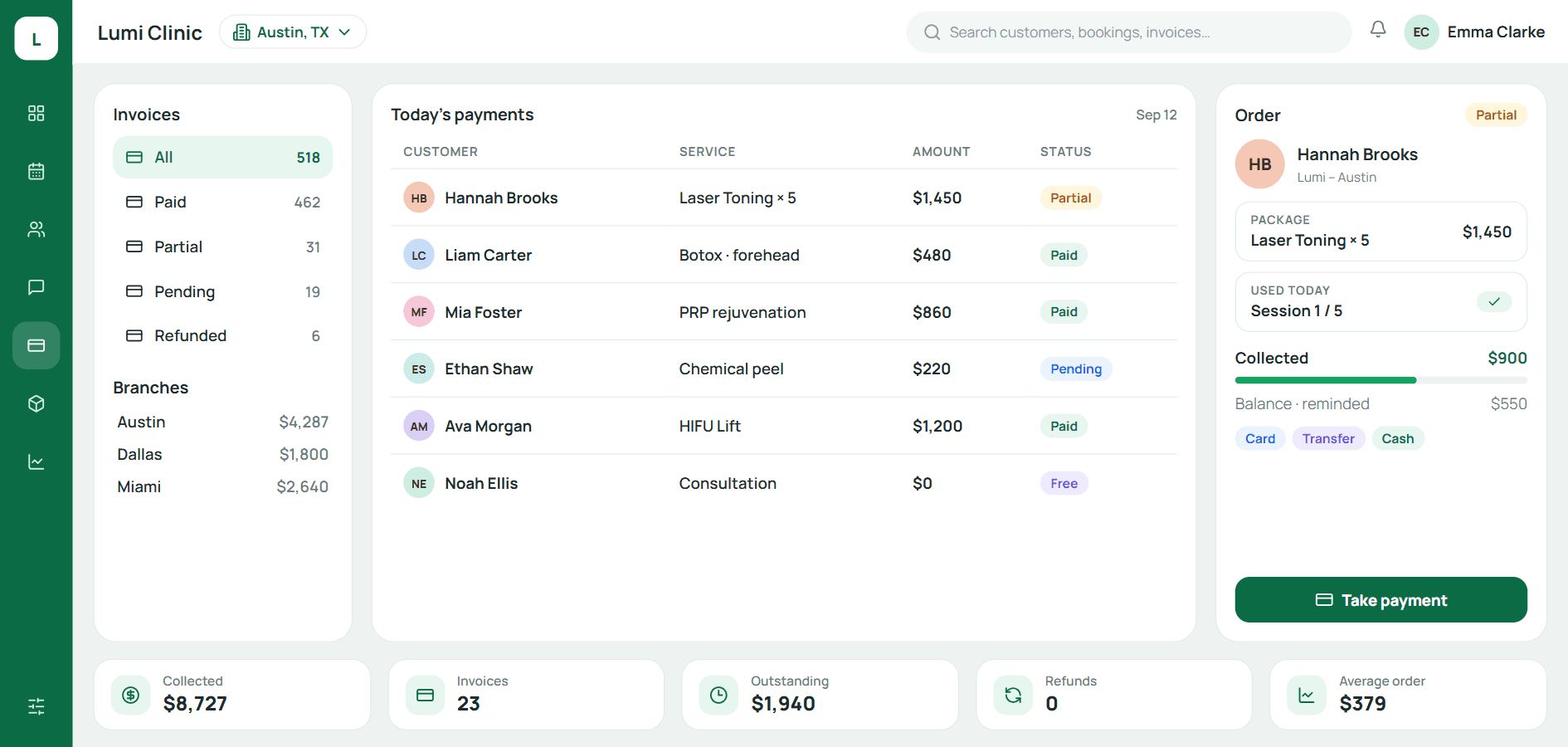
A partially paid order with its balance
Order
Order: package, session used today, collected and balance

Versus the old way

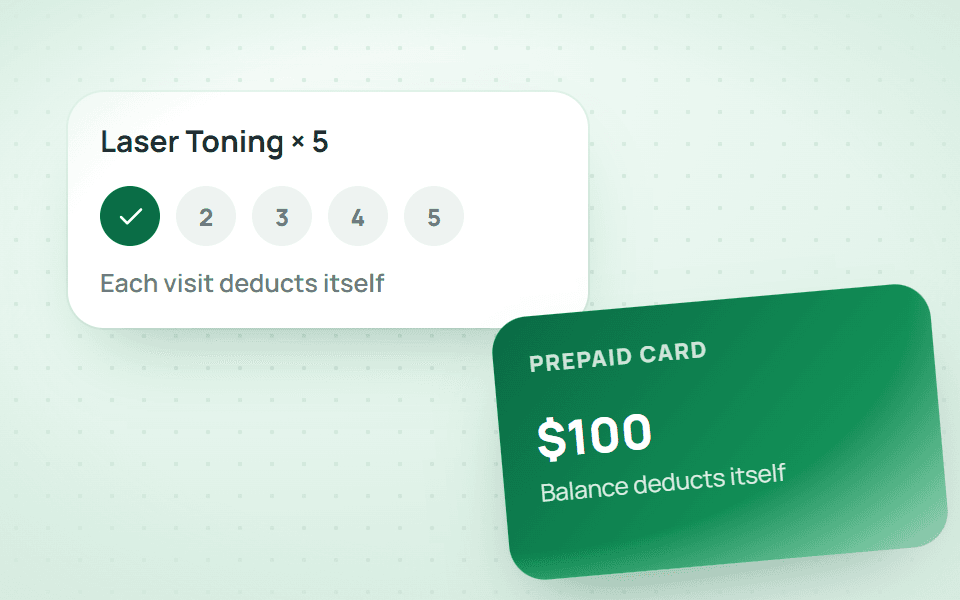
A customer buys a 10-session package and has session 1 today: 2 orders → 1 order.

Add the package to the order, click Use on that package, and today's session is deducted on the same invoice. The cashier never creates a second order.

  • Fewer stepsThe order opens from the customer card on the board: name, balance and remaining sessions prefilled.
  • Numbers that agreeRemaining sessions, prepaid balance and outstanding amounts are deducted automatically, no spreadsheet.
  • No manual FXEnter VND and see USD, KRW, JPY, CNY at the bank rate at payment time.

The usual way

  1. 1Create an order for the package, collect
  2. 2Create a second order for today's service
  3. 3Open Excel and deduct one session
  4. 4Write the balance in a notebook
  5. 5Reconcile three sources at month end

2 orders, 3 sources, mismatches are normal

With Qub-X

  1. 1Open the order from the customer card
  2. 2Add the package, click Use, pick a method, pay

1 order, numbers agree by themselves

The problem

When remaining sessions live in Excel, the gap shows at month end.

The cashier remembers one number, the consultant another, the customer a third. Outstanding amounts in a notebook, invoices by hand, daily revenue added up by hand.

  • Packages and balances differ between desks
  • Nobody chases outstanding amounts
  • Daily revenue waits for the books to close
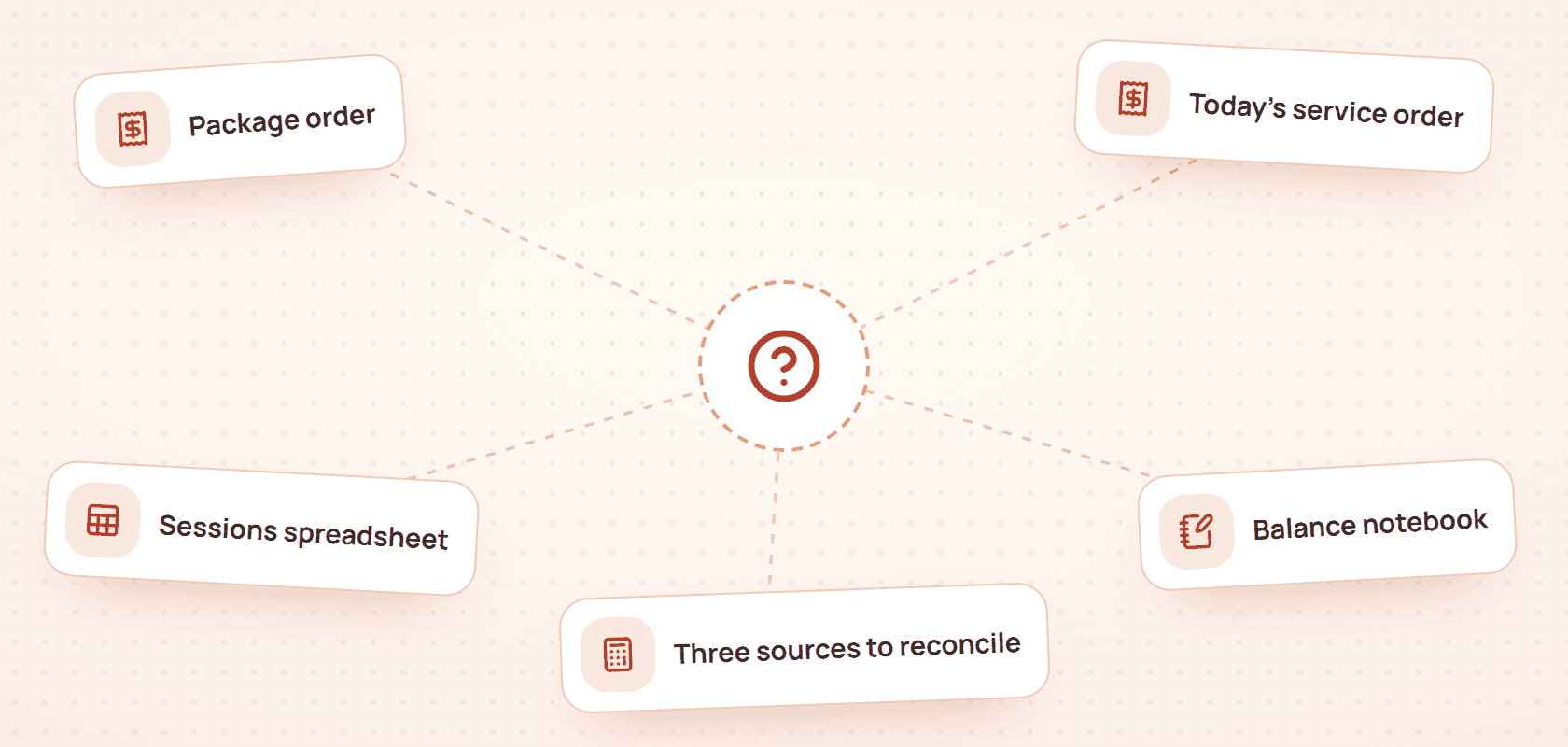
The usual way

  1. 1Create an order for the package, collect
  2. 2Create a second order for today's service
  3. 3Open Excel and deduct one session
  4. 4Write the balance in a notebook
  5. 5Reconcile three sources at month end

2 orders, 3 sources, mismatches are normal

What stands out

When you open an order, you see what the customer still has: balance, sessions left, finished packages.

The order window has three zones: the customer's assets on the left, the catalogue of services and packages to add, and the invoice on the right. Every package card has Use and History right on it.

  • Prepaid card and balance at the top
  • Packages with sessions left: use, transfer, refund on the card
  • Catalogue filtered by Treatments, Packages, Prepaid, Products

Saves an order, no manual maths

When you check out, pick a method, enter foreign currency if needed, print.

Cash, transfer, card, prepaid card, mixed or on account, every invoice has a status: paid, partial, pending, refunded. The FX table at Vietcombank + BIDV rates sits right underneath.

2 orders, 3 sources, mismatches are normal1 order, numbers agree by themselves
  • Partial payments become tracked outstanding amounts
  • E-invoices and MISA accounting integration
  • Revenue reaches the reports the moment you click Pay

Easy to use

When you need an invoice, type the customer or the number.

The ledger filters by status, method and date; every row can be reprinted, edited or refunded. Outstanding and Draft / Hold have their own tabs so they never mix with finished orders.

  • Search by name, customer code or invoice number
  • Filter Paid · Partial · Pending · Refunded
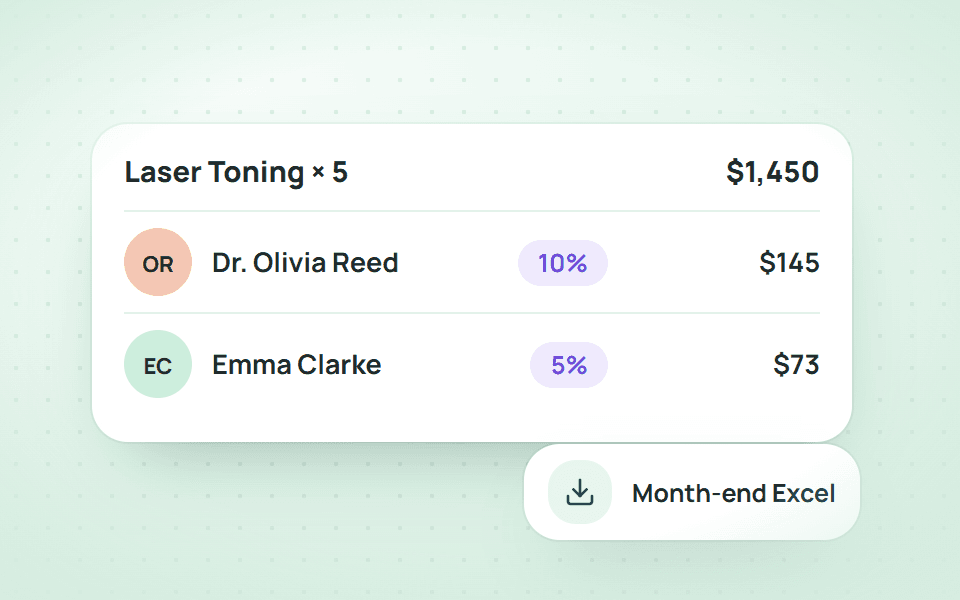
  • One-click Excel export

Three questions cashiers ask

If a customer pays part, where does the rest go?
It becomes an outstanding amount on that invoice, shown in the Outstanding tab and on the customer card; collect it later on the same order.
Can a session be transferred to another customer?
Yes. Click Transfer on the package card and pick the recipient; history records who gave what to whom.
What does the MISA integration do?
Pushes invoices and receiving slips to MISA so accounting never retypes them.

BOOK A DEMO

See how Qub-X fits the way your clinic works.

Share how your clinic operates. The Qub-X team will prepare a demo focused on your workflow and needs.

A 30-minute demo based on a real clinic scenario
Focus on the features you care about
No commitment required after the demo

Your demo can focus on

SchedulingInboxPaymentsReports
Which areas do you want to review?

The Qub-X team will contact you to confirm a suitable time.