
Features Scheduling

One shared calendar for rooms, beds and staff

The front desk books, reschedules and confirms in seconds. When customers message on Zalo, Messenger or Instagram, consultants close the booking inside the inbox, everything lands on the same calendar.

  • Day · week · month
  • Custom appointment groups & colours
  • Book from any screen
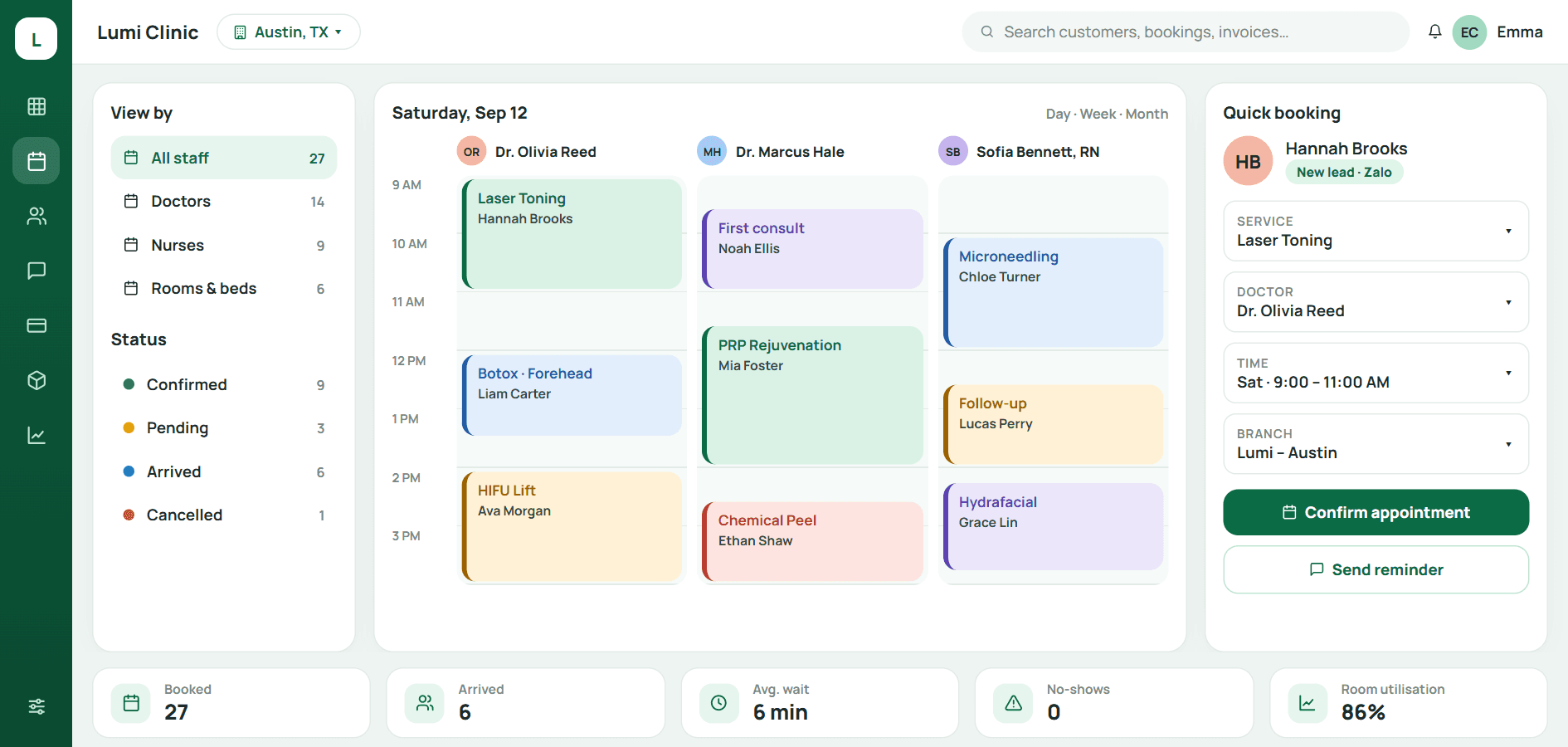
Day calendar in Qub-X CRM
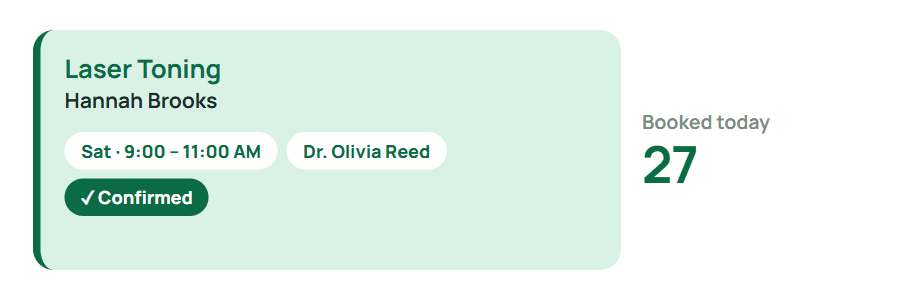
Confirmed visit
A confirmed visit on the calendar
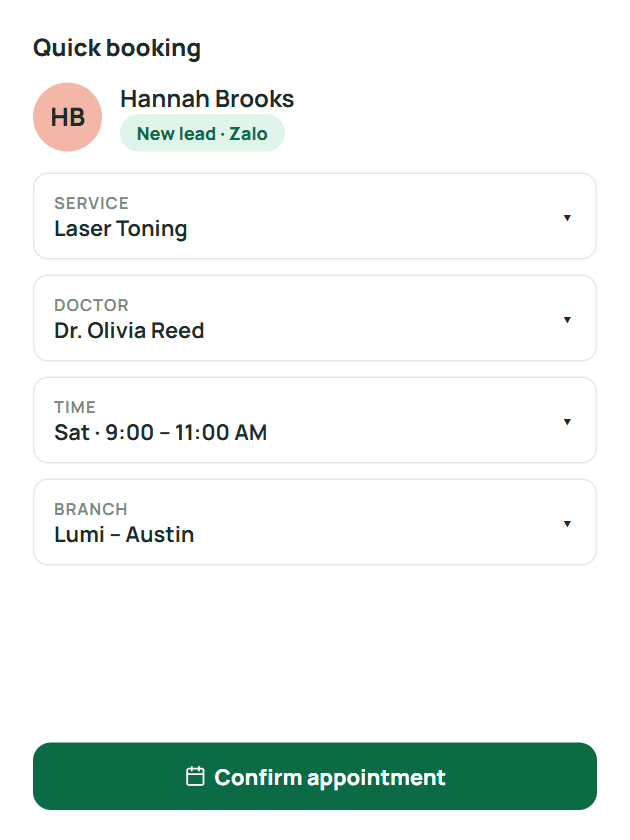
Quick booking
Quick booking pane for a new lead

Versus the old way

Booking from Zalo: 4 screens → 1 panel.

The customer messages, the consultant opens the new-appointment panel inside the inbox, picks a time and a room, done. No tab switching, no retyping the name.

  • Fewer stepsThe new-appointment panel opens from the inbox, the board, payments or inventory.
  • No double-booked roomsOne calendar for rooms, beds and staff; a clash is visible at once.
  • No lost customersOnline bookings land straight on the calendar as unconfirmed, for the front desk to call back.

The usual way

  1. 1Read the message on the phone
  2. 2Open the calendar app, find a free slot
  3. 3Open Excel to look up the customer
  4. 4Retype name, phone, service
  5. 5Go back to Zalo to confirm the time

5 steps, 4 screens, easy to mistype

With Qub-X

  1. 1Inside the chat, click New appointment
  2. 2Pick time, room, staff, the customer is prefilled

1 panel, never leave the inbox

The problem

When the calendar is full but rooms are empty, the calendar lives in three places.

The front desk writes in a book, consultants in Zalo, doctors in their heads. You find out at the hour that two customers share a bed, or a bed is free while a customer waits in the lobby.

  • Reschedules by text that nobody writes down
  • No view of which room or machine is free
  • Cancelled customers still holding a slot

The usual way

  1. 1Read the message on the phone
  2. 2Open the calendar app, find a free slot
  3. 3Open Excel to look up the customer
  4. 4Retype name, phone, service
  5. 5Go back to Zalo to confirm the time

5 steps, 4 screens, easy to mistype

What stands out

When you schedule, one screen shows rooms, beds and staff.

Day, week or month views, filtered by staff and appointment group. Each group has a colour the clinic sets itself: unconfirmed, follow-up, long treatment…

  • Staff, group and status filters on the left
  • Appointments per group counted for the day
  • Add or remove groups without a technician

Saves 4 screens

When a customer messages on Zalo, book them inside the chat.

The new-appointment panel slides out beside the inbox: name and phone are already there, just pick the service, time and branch. Visit history and owned packages show so the consultant knows what to suggest.

5 steps, 4 screens, easy to mistype1 panel, never leave the inbox
  • Book from the inbox, the board, payments or inventory
  • TELE tag for bookings taken by phone
  • Confirmation sent back on Zalo OA
See Omni-channel chat

Easy to use

When the front desk reschedules, just drag the block to another time.

Drag and drop on the calendar, change status with one button: unconfirmed, confirmed, arrived, cancelled. Colours and group names are the same across the system, so there is nothing new to learn.

  • Drag to change time or room
  • Clear statuses, one click
  • Same colours and names across the system

Three questions front desks ask

Do online bookings go straight into the calendar?
Yes, as unconfirmed with their own colour. The front desk calls to confirm and changes the status.
Is there a limit on appointment groups?
No. The clinic adds, removes and recolours groups in settings.
Does rescheduling notify the customer?
A new confirmation can be sent on Zalo OA or whichever channel the customer uses, from the appointment panel.

BOOK A DEMO

See how Qub-X fits the way your clinic works.

Share how your clinic operates. The Qub-X team will prepare a demo focused on your workflow and needs.

A 30-minute demo based on a real clinic scenario
Focus on the features you care about
No commitment required after the demo

Your demo can focus on

SchedulingInboxPaymentsReports
Which areas do you want to review?

The Qub-X team will contact you to confirm a suitable time.